
Discover How to Scan QR Code in PC Easily
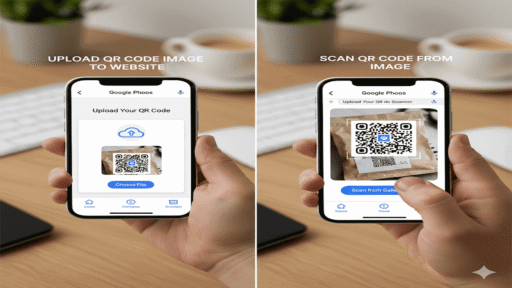
Scanning a QR Code is usually seen as a task for smartphones. However, knowing how to scan QR code in pc environments is becoming increasingly important for productivity and convenience. Whether you need to access a website, read a digital menu, or verify a login securely, doing it from your desktop saves time. This guide helps you define the best methods to read these codes without leaving your browser. It ensures you can access information quickly, keeping your workflow uninterrupted while maintaining high security standards.
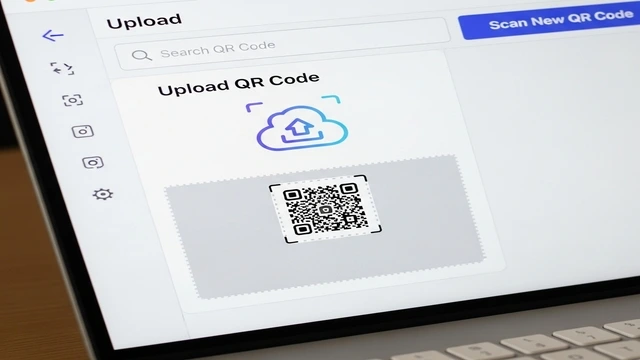 |
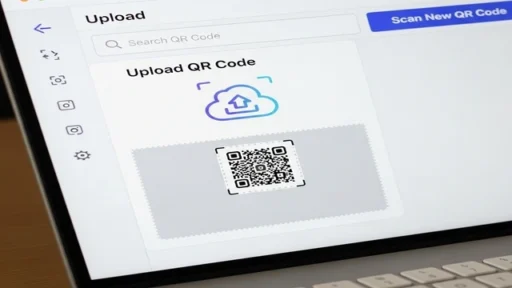
| How to scan qr code in pc directly on Windows and Mac. |
You need a method that is fast, reliable, and does not require heavy software installation. Online tools like 2scan.net provide a seamless experience by allowing you to use your webcam or upload images directly. You must prioritize tools that respect your data privacy and offer instant results. This approach helps in streamlining your digital tasks and effectively bridges the gap between mobile and desktop interfaces.
Identify Your Needs and Tools
Start by determining why you need to scan a code on your desktop. This helps you choose the right tool for the job. When you understand the context, such as logging into a messaging app or opening a URL from an email, you will master how to scan qr code in pc workflows much faster. You must identify if you have a working webcam or if you are scanning a static image file saved on your drive. Furthermore, you can follow these steps to enhance your scanning strategy.
- Use browser-based tools like 2scan.net to avoid downloading unnecessary software, which keeps your computer storage clean and reduces security risks.
- Prepare your environment by ensuring your room is well-lit if you plan to use a webcam, as lighting affects the camera’s ability to read the pixelated patterns.
- Save QR codes found on websites as image files (PNG or JPG) so you can upload them to a scanner instead of trying to point a camera at the screen.
- Check your browser permissions to ensure the scanning website can access your camera, which is a standard security prompt you will encounter.
- Review the scanned link before clicking to ensure it leads to a legitimate website, protecting yourself from phishing attempts known as “Quishing.”
- Utilize screen capture tools like the Snipping Tool on Windows or Shift+Command+4 on Mac to isolate QR codes from documents for easier scanning.
In short, you must explore all available online options and work with focus to achieve success in desktop scanning, and continuous practice will help you integrate this skill into your daily routine seamlessly.
Plan Your Scanning Method
Planning your approach and strategies in the realm of digital scanning is the fundamental element that defines your efficiency and safety. Here are some strategies that can help you achieve success in this area.
- Choose the Mode 📌Before you begin, decide if you are using a live camera feed or a file upload. If the QR code is on a piece of paper, use the webcam. If it is digital, use the upload method.
- Prepare the Image 📌Ensuring the image is clear and high-contrast helps the algorithm process the data and read the information effectively.
- Access the Tool 📌Navigate to a reliable site like 2scan.net. Using a dedicated URL ensures you are not exposing your data to unknown third-party extensions.
- Upload or Snap 📌Action must be taken promptly. Click the camera button to snap a photo or drag and drop your file into the designated box for instant analysis.
- Verify the Result📌 By reading the text output(URL) checking the decoded link carefully can prevent you from visiting malicious sites and ensures the data matches your expectations.
- Copy and Utilize 📌Use the “Copy” function to move the link or text to your browser address bar or document, completing the transfer of information from code to PC.
- Troubleshoot Glitches 📌You should be able to handle minor errors by refreshing the page, wiping your camera lens, or cropping the image to remove background noise.
- Bookmark for Later 📌Finding a good tool takes time, so when you find a method that works for how to scan qr code in pc, save it to your bookmarks bar for quick access next time.
Considering these strategies and planning your steps, you can increase your chances of successful scanning on your computer and increase your productivity significantly.
Focus on Image Quality
Your attention to image quality is a core strategy for achieving success in scanning digital codes. Content that enjoys high clarity contributes significantly to accurate decoding by the algorithm. Here are some strategies to improve scan reliability on your device.
- Check Lighting Conditions Make sure your room is bright if using a webcam. Shadows can obscure the corner markers of the QR code, making it unreadable for the software.
- Avoid Screen Glare Position the physical code (like a paper or phone screen) so that it does not reflect the light from your monitor back into the webcam lens.
- Crop the Image Remove unnecessary borders or text surrounding the QR code using an image editor or screenshot tool to help the scanner focus solely on the data pattern.
- Use High Resolution Try to obtain the original file rather than a thumbnail. A blurry or pixelated image often results in scan failures or incorrect data interpretation.
- Maintain Flatness If scanning a physical document, hold it flat against the camera. Curvature distorts the square proportions required for the code to be recognized.
- Verify File Formats Ensure you are uploading compatible formats. Most online tools prefer PNG or JPG files over complex formats like TIFF or RAW.
- Steady Hands Keep your hand steady when holding a code up to a webcam, or place the item on a stable surface to allow the camera to focus properly.
Considering these strategies, you can improve the quality of your input and build a reputation for efficiency, which increases the speed of your workflow and contributes to your success in desktop management.
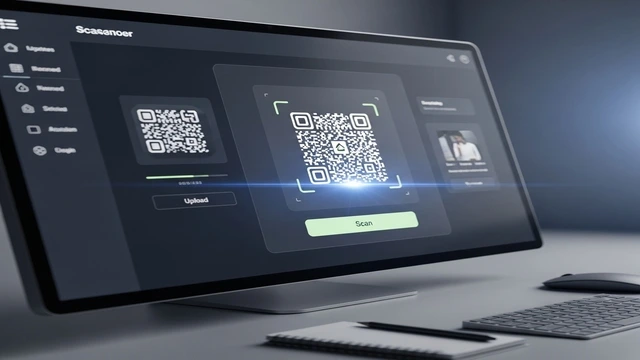 |
| Strategies for scanning QR codes directly on Windows and Mac. |
Prioritize Online Security (Safety)
Prioritizing online security is one of the fundamental factors for safe internet usage. Thanks to applying safety checks correctly, you can prevent malware infections that often hide behind innocent-looking QR codes. When you scan a code on a PC, you have the advantage of seeing the full URL before you visit it. This allows you to inspect the domain name and ensure it is the official site you intended to visit, rather than a fake replica designed to steal credentials.
Your attention to security details is crucial. Scanning is not just a technical action; it is a gateway that allows data to enter your secure browser environment. By verifying HTTPS protocols and using trusted scanners like 2scan.net that do not store your images.
You can enhance your protection against cyber threats and keep your personal data private. By caring about security, you avoid phishing scams, improve your digital hygiene, and build a safer workspace. Therefore, do not ignore this important aspect of the digital strategy; instead, dedicate time to verify every link scanned to achieve sustainable safety online.
In short, successful digital navigation or online work cannot ignore the importance of security verification. If you wish to protect your PC and personal data while learning how to scan qr code in pc, you must invest in safe browsing habits seriously.
Interact with the Technology
Your interaction with the scanning tools is a decisive factor in your efficiency on the PC. When you understand how the browser communicates with your hardware and interact with the interface regularly, you can achieve better results. Here are effective strategies to interact with these tools properly.
- Granting Permissions👈 You must be willing to click “Allow” when the browser asks for camera access, but only for trusted websites that you have verified beforehand.
- Cleaning the Cache👈 Periodically clear your browser cache if the scanning tool becomes sluggish, as temporary files can sometimes interfere with the upload or camera functionality.
- Testing Different Codes👈 Try scanning different types of codes, such as Wi-Fi credentials, vCards, and plain text, to understand the capabilities and limitations of your chosen tool.
- Updating the Browser👈 Ensure your Chrome, Firefox, or Edge browser is up to date, as older versions may not support the modern HTML5 standards required for webcam access.
- Using Drag and Drop👈 Utilize the drag-and-drop feature for files, which is often faster than navigating through folder menus to find the image you want to scan.
- Providing Feedback👈 If an online tool fails to read a clear code, use the contact form to alert the developers, helping improve the tool for the entire community.
By adopting these strategies and interacting effectively with your software, you can build a seamless workflow and achieve sustainable success in digital productivity.
Connect with Multiple Platforms
In the world of cross-platform technology, connecting scanning methods across Windows and Mac can be a decisive strategy for achieving consistency. Operating systems are partners in your productivity that provide different ways to handle images. Understanding these differences allows you to scan anywhere. It is important to bridge the gap between OS features.
- Windows Snipping Tool Start by using the Snipping Tool (Win + Shift + S) to grab QR codes from emails or websites. Save them to the desktop to upload them to the online scanner immediately.
- Mac Screenshot Shortcuts Use Command + Shift + 4 on macOS to take a precise screenshot of a QR code. This creates a high-quality file on your desktop ready for processing.
- Cloud Synchronization Use cloud storage like Google Drive or OneDrive to move QR code images from your phone to your PC if you need to scan a photo taken on mobile.
- Webcam Settings Adjust camera settings in Windows “Settings” or Mac “System Preferences” to ensure the browser is not blocked from accessing the hardware.
- Browser Consistency By using a web-based tool like 2scan.net, you create a consistent experience regardless of whether you are on a Mac or a PC, as the interface remains the same.
- Keyboard Shortcuts Learn the keyboard shortcuts for switching tabs (Ctrl+Tab) to quickly flip between the page with the code and the scanner tool.
- Monitor Resolution Higher resolution monitors allow you to display larger QR codes, which are easier for external devices or webcams to pick up clearly.
- File Management Organize a temporary “Scans” folder to keep your downloads tidy, ensuring you delete sensitive QR code images after you have extracted the data.
In short, understanding your operating system is an effective strategy to master how to scan QR code in pc environments. Through mastering shortcuts and file management, your workflow can reach a professional level, opening doors for faster data access and enhancing your technical capability significantly. Use these tips positively and enjoy the growth in your technical skills.
Keep Learning New Methods
Continuing to learn and evolve is essential for mastering PC-based scanning techniques. The tech world changes rapidly, and new browser capabilities are released often. By continuing to learn, you can discover faster ways to capture screens, new extensions that are safe to use, and updates to privacy laws regarding digital data.
Invest time in reading tech blogs and articles about browser updates and security features. You can also participate in tech forums to see how other professionals handle workflow challenges involving physical-to-digital data transfer. By staying educated, you will be able to solve problems like broken links or unreadable codes quickly, achieving sustainable success in your digital tasks.
Additionally, keeping up with developments helps users adapt to changes in QR code technology itself, such as the introduction of “colored” or “artistic” QR codes that might require more advanced scanners. This allows you to use new strategies and innovations in areas like data sharing and authentication. Consequently, continuous development contributes to enhancing your status as a tech-savvy user.
In the end, a user’s commitment to learning reflects a true will to grow and improve their efficiency, leading to a smoother digital life and building a strong, problem-free relationship with technology.
Be Patient with Technical Issues
Having patience and perseverance are the keys to solving scanning errors. In a world full of different screen resolutions and camera qualities, getting a perfect scan might require a few attempts. It does not happen in a single moment but requires patience and adjustment of lighting or distance.
- Patience with focus.
- Persistence in trying.
- Dedication to clarity.
- Overcoming blur.
- Trust in the tool.
- Stability in holding.
- Handling glitches.
Remember something very important: Success in scanning difficult codes comes from effort and adjustment, and it may fail at the first attempt. Overcoming this moment and adjusting the angle is the real success. Remember also that finding a working solution is a success in itself. My advice to you is to learn the limitations of your webcam before relying on it completely.
So, do not hesitate to face the challenges and difficulties that may face you in your journey to scan codes on PC, and always remember that perseverance is the key to accessing data and building a distinguished technical path.
Conclusion: In the end, it can be said that the strategies for learning how to scan qr code in pc require a careful balance between hardware and software. The user must be patient and committed to security, while continuing to improve their image capture skills. They must also understand the tools they are using and ensure the privacy of their data.
Additionally, the user should adopt effective strategies to handle different file formats using online tools like 2scan.net. By employing these strategies in a balanced and thoughtful manner, PC users can access mobile-first information easily and achieve success and efficiency in the digital workspace.