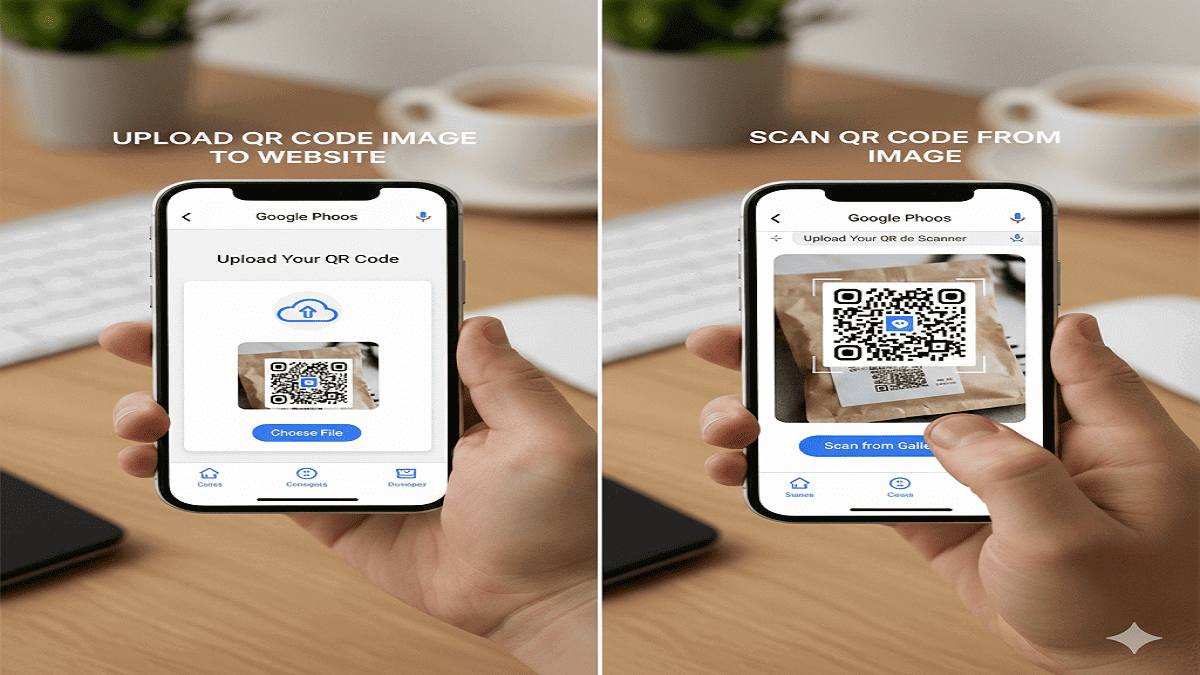

Scanning a QR code with your camera is something we do almost daily, whether it is for a restaurant menu or a Wi-Fi connection. However, a common challenge arises when the code is not on a wall or a table, but saved inside your phone as a picture. Many users ask, “How do I scan QR code from image“ without needing a second device? The good news is that modern technology has made this process incredibly simple. Whether you are using an iPhone, an Android device, or a PC, there are built-in tools and easy methods to decode these images directly from your gallery. This guide will walk you through every step to ensure you can access the information you need without friction.
You need to adopt a strategy that utilizes the native features of your operating system. For iPhone users, the Live Text feature has revolutionized how we interact with images. Android users have the powerful Google Lens integrated deep into their systems. Even PC and Mac users have simple workarounds. By understanding these tools, you stop wondering how do I scan QR code from image and start doing it instantly. Below, we break down these strategies into actionable steps.
Understanding the Basics
Before diving into the specific buttons and clicks, it is helpful to understand why this skill is essential. We often receive QR codes via email, WhatsApp, or social media screenshots. Knowing how to handle these files saves time and effort. When you identify the right tool for your specific device, you turn a frustrating moment into a seamless task. You should identify your device type and its operating system version, as newer updates often contain hidden features for this exact purpose.
- Digital Tickets and Passes: Many event organizers send tickets as QR code images via email. Scanning them directly on your phone is crucial for entry.
- Wi-Fi Sharing: Friends often share Wi-Fi access via screenshots of QR codes. You need to decode this from your gallery to connect instantly.
- Payment and Banking: Payment apps frequently use QR codes for transactions. Being able to scan a received image allows for remote payments.
- Social Media Links: Influencers share profiles via QR screenshots. Scanning these images is the fastest way to follow new accounts.
- Two-Factor Authentication: Setup keys are often displayed as QR codes. If you are setting up an account on the same device, you must scan the screenshot from your photos.
- Product Information: Screenshots of product packaging often contain QR codes leading to manuals or warranties that need to be accessed digitally.
In short, you must explore the built-in capabilities of your smartphone or computer. Working smartly with these images ensures you are never stuck looking for a second phone just to scan a code.
Strategies for iPhone (iOS)
If you are an Apple user, the ecosystem provides a seamless experience known as “Live Text.” This feature, available in iOS 15 and later, makes the question “how do I scan QR code from image” almost irrelevant because the phone does it automatically. Here are the specific strategies and steps for iPhone users.
- Using Live Text in Photos 📌 Open your Photos app and select the image containing the QR code. Look for the Live Text icon (a small square with text lines) in the bottom right corner. Tap it, and then tap the QR code itself to open the link.
- The Long-Press Method 📌 Even simpler than the icon, you can often just press and hold your finger on the QR code within the image. A yellow menu will pop up offering options to “Open in Safari” or “Copy Link.”
- Using the Google App on iOS 📌 If you prefer Google’s ecosystem, download the Google app. Tap the camera icon in the search bar (Google Lens), then switch to photo mode to select an image from your gallery.
- Wallet App Integration 📌 For passes and tickets, sometimes the Apple Wallet app can detect codes from your photos directly when you try to add a new pass.
- Siri Shortcuts📌 Advanced users can create a shortcut in the “Shortcuts” app. Create a workflow that accepts an image as input and runs the “Detect QR Code” action to extract data instantly.
- Scanning from Files App 📌 If the image is saved in your “Files” rather than Photos, open it there. The native iOS intelligence still works; simply long-press the code to interact with it.
- Using Third-Party Scanners 📌 While native tools are best, legacy apps like “QR Reader for iPhone” allow you to upload a photo from your camera roll to decode it if your iOS version is old.
- Messaging App Previews 📌 If someone sends you a code on iMessage, you do not even need to save it. Tap the image to view it full screen, and the Live Text button will appear immediately.
By utilizing these strategies, specifically the Live Text feature, you can dramatically increase your efficiency on iPhone. It turns a multi-step process into a single tap interaction.
Strategies for Android Users
Android offers diverse ways to handle this task depending on your phone manufacturer (Samsung, Pixel, Xiaomi, etc.). However, the core technology usually relies on Google Lens, which is the gold standard for visual search. Here is how to ensure quality results on Android.
- Google Photos Integration Open the image in the Google Photos app. Tap the “Lens” button at the bottom of the screen. Dots will appear over the QR code; tap them to see the URL or content.
- Samsung Gallery Quick View On Samsung devices, open the standard Gallery app. An eye icon (Bixby Vision) appears in the top corner. Tap it to scan the image instantly without leaving the gallery.
- Using the Native Camera App Many modern Android cameras allow you to tap a thumbnail of your recent photos while in camera mode to scan them, or have a Google Lens mode built directly into the viewfinder interface.
- The Google Screen Search If you are viewing the image on a website or social app, activate Google Assistant (usually by holding the home button or swiping diagonally) and select “Search Screen.”
- Google Files App If the image is buried in your downloads folder, open the “Files by Google” app. Preview the image and look for the Lens integration to scan without moving the file.
- Quick Settings Tiles Some Android versions allow you to add a “QR Scanner” tile to your quick settings (pull-down menu). While mostly for the camera, some versions allow gallery import.
- Avoid Ad-Heavy Apps The Play Store is full of scanner apps that show ads. Stick to system tools like Google Lens or manufacturer-specific tools to avoid unnecessary interruptions.
Following these Android-specific strategies allows you to bypass the need for third-party software. You can trust the operating system to handle the decoding process securely and quickly, answering how do I scan QR code from image with built-in confidence.
How do I Scan QR Code from Image on PC and Mac
Computers are often overlooked when discussing QR codes, but desktop users frequently encounter them in emails or documents. Optimizing your workflow on a PC involves using browser extensions or built-in OS tools. If you receive a code while working, you shouldn’t have to pull out your phone.
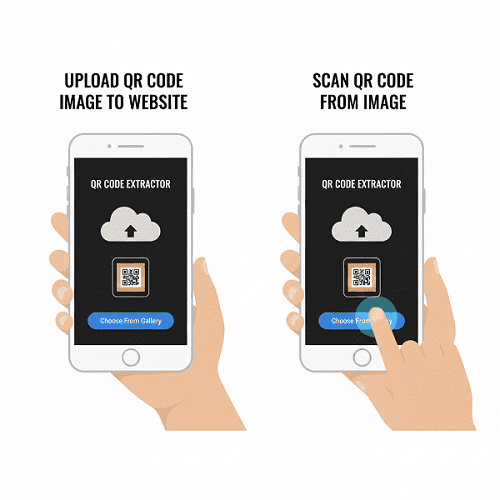
Using Google Chrome on a PC is perhaps the fastest method. Right-click the image containing the code and select “Search Image with Google.” The Google Lens side panel will open on the right, decoding the QR code immediately. This requires no downloads and works on Mac, Windows, and Linux.
For Windows 11 users, the “Snipping Tool” and “Camera” apps are evolving to include barcode recognition. Alternatively, reliable websites allow you to upload an image file to decode it. However, always be cautious about which websites you upload sensitive personal codes to.
Note: When using online web-based scanners on a PC, ensure the site uses HTTPS. Avoid uploading QR codes that contain private passwords or banking keys to unknown servers. Stick to reputable browser features whenever possible.
Interact with Google Lens
Google Lens is arguably the most powerful tool for this task across all platforms. Interacting with this tool effectively can solve almost any scanning issue. It uses advanced AI to recognize not just QR codes, but also text and objects. Here is how to maximize your success with it.
- Access the Tool 👈 Download the Google app on iPhone or find the Lens icon in the search bar on Android. This is your gateway to visual search.
- Select the Source 👈 Tap the gallery icon located next to the shutter button. This opens your local storage, allowing you to pick the specific image file.
- Crop for Clarity 👈 If the image contains a lot of background noise, use the crop handles within Lens to focus specifically on the QR square. This improves accuracy.
- Action Buttons 👈 Once scanned, Lens will provide a “chip” or button overlay. Tap “Website,” “Copy URL,” or “Copy Text” depending on what the code contains.
- History and Save 👈 Google Lens often keeps a temporary history of your visual searches, allowing you to go back to a link you scanned earlier without finding the image again.
- Translation Features 👈 If the QR code leads to a menu or page in a foreign language, Lens can translate the text immediately after scanning, offering double utility.
By mastering these interactions with Google Lens, you build a robust method for handling any visual data. It is the ultimate answer to how do I scan QR code from image regardless of what device you own.
Connect with Trusted Apps
Sometimes built-in tools fail, or you need advanced features like batch scanning or history logs. In the world of scanning, connecting with trusted third-party applications can be a valid strategy. However, discernment is key. You want apps that are lightweight, secure, and free from malicious tracking.
- Kaspersky QR Scanner This app is built by a security company. It checks the link within the QR code for viruses or phishing scams before opening it, adding a layer of safety.
- Barcode Scanner (ZXing) An open-source, no-frills option for Android that is extremely lightweight. It strictly does the job of scanning from camera or file without tracking your data.
- Qrafter (iOS) A powerful tool for iPhone users that allows for creating and scanning codes. It has a specific feature to “Import from Camera Roll” that handles low-resolution images well.
- Binary Eye Another open-source favorite for privacy enthusiasts. It has no internet permission requirements, meaning it decodes the image locally on your device without sending data to the cloud.
- Checking Permissions Before installing any app, check what permissions it asks for. A scanner app should only need access to the Camera and Storage. It does not need access to your Contacts or Microphone.
- Read Reviews Carefully Look for recent reviews mentioning “too many ads” or “crashes.” The app store landscape changes quickly, and a good app can become bad with one update.
- Test with Sample Images After downloading, test the app with a clear QR code image to ensure it works smoothly with your specific phone model before relying on it for urgent tasks.
- Keep Apps Updated Security vulnerabilities are often patched in updates. Ensure your chosen scanner app is set to auto-update to maintain functionality and safety.
Summary: While native tools are preferred, connecting with reputable brands like Kaspersky or open-source projects provides safety nets. These tools are especially useful if your phone's native software is outdated or glitchy. Always prioritize security over convenience when choosing software.
Continue Learning and Troubleshooting
Technology is not perfect, and you may encounter QR codes that simply refuse to scan. Continuing to learn about *why* scans fail is as important as knowing how to scan. Troubleshooting skills will save you from frustration when you are in a hurry. Common issues usually revolve around image quality, lighting, or format.
If a scan fails, try zooming in on the image. Sometimes the QR code is too small in the screenshot for the algorithm to detect the three corner markers. Alternatively, increase the brightness of your screen if scanning with another device, or use a photo editor to increase the contrast of the screenshot. Black and white contrast is essential for the decoder to work.
Additionally, be aware of “inverted” QR codes (white dots on a black background). While most modern scanners handle these, some older algorithms struggle. If you encounter one, you might need to use an app like Photoshop or a simple phone editor to invert the colors back to standard black-on-white. Staying updated on these small tricks ensures you can handle any digital curveball.
Key Insight: The most common reason for failure is a blurry image. If the screenshot is low resolution, try to request a higher quality version. No amount of software magic can fix a QR code that is missing critical pixel data.
Practice Caution and Patience
Patience and caution are vital when dealing with QR codes from unknown sources. This practice is often called avoiding “Quishing” (QR Phishing). Just because you *can* scan an image, does not always mean you *should*. Cybercriminals often embed malicious links into QR codes and send them via email images to bypass spam filters.
- Verify the source.
- Preview the URL.
- Look for HTTPS.
- Avoid shortened links.
- Check for pixelation.
- Trust your instincts.
- Update your browser.
Security Reminder: A QR code is just a link in a different shape. Treat it with the same suspicion you would treat a random link in a spam email. If an image promises free money or urgent account action via a QR code, it is likely a scam. Pause and verify before you click.
By combining the technical skill of “how do I scan QR code from image” with a mindset of security, you protect your digital identity. Do not rush the process; take the extra second to read the URL that pops up on your screen.
Conclusion: In the end, mastering the ability to scan a QR code from an image is a fundamental digital literacy skill. Whether you rely on the seamless integration of iOS Live Text, the intelligence of Google Lens on Android, or the versatility of desktop browser tools, the solution is always at your fingertips. You no longer need to print emails or find a second phone just to access a link.
By following the strategies outlined above—choosing the right tool, ensuring image clarity, and remaining vigilant against security threats—you can navigate the digital world with greater speed and safety. The next time a QR code appears in your gallery, you will know exactly what to do.